





























How to Use Microsoft Copilot Across Word Excel and Outlook
Copilot behaves differently in every Microsoft 365 app. What it does well in Word, Excel and Outlook, and where it needs close checking.
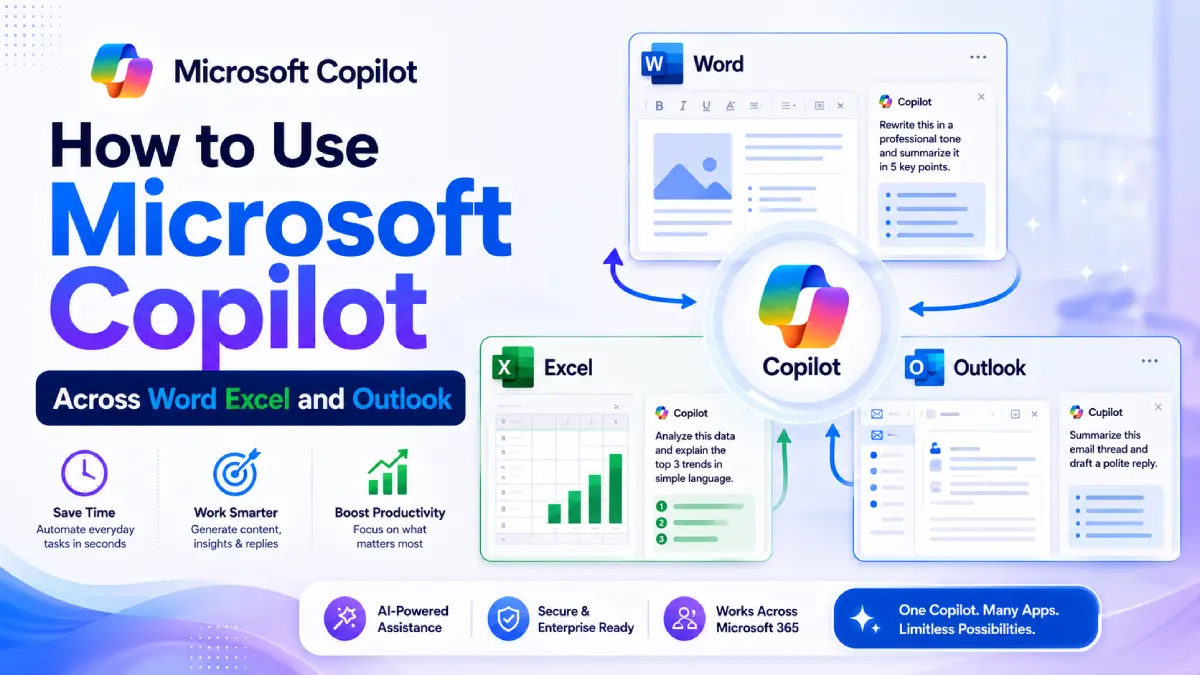
Copilot behaves differently in every Microsoft app, and that difference matters more than most guides let on. In Word it drafts and rewrites. In Excel it reasons over a table and will be confidently wrong about a formula. In Outlook it summarises a long thread far better than it composes a reply.
Treating them as one assistant is the mistake. This guide takes each app on its own terms first, then covers the handful of workflows where handing work between them genuinely saves time.
If so, learning How to Use Microsoft Copilot effectively can transform the way you work. Microsoft Copilot is more than an AI assistant inside individual apps. When used across Microsoft 365, it becomes a connected productivity system that helps you write, analyze, present, communicate, and organize information faster.
Many users make the mistake of treating Word, Excel, Outlook, PowerPoint, Teams, and OneNote as separate tools. The real value comes when you use them together as one workflow.
What follows takes Microsoft Copilot app by app across Microsoft 365, with prompts you can paste straight in and a note on where each app's version is weakest.
Copilot is not the only assistant worth considering for this work: the model comparison covers where it wins and loses, and the marketing tool roundup lists alternatives per task.
What Is Microsoft Copilot?
Microsoft Copilot is Microsoft's AI-powered assistant integrated into Microsoft 365 applications. It helps users generate content, summarize information, analyze data, automate repetitive tasks, and improve productivity.
As a modern Microsoft AI assistant, Copilot works directly inside applications such as:
- Microsoft Word
- Microsoft Excel
- Microsoft PowerPoint
- Microsoft Outlook
- Microsoft Teams
- Microsoft OneNote
Instead of manually handling every task, you can provide natural language instructions and let Copilot assist with the work.
How to Use Microsoft Copilot Across Microsoft 365
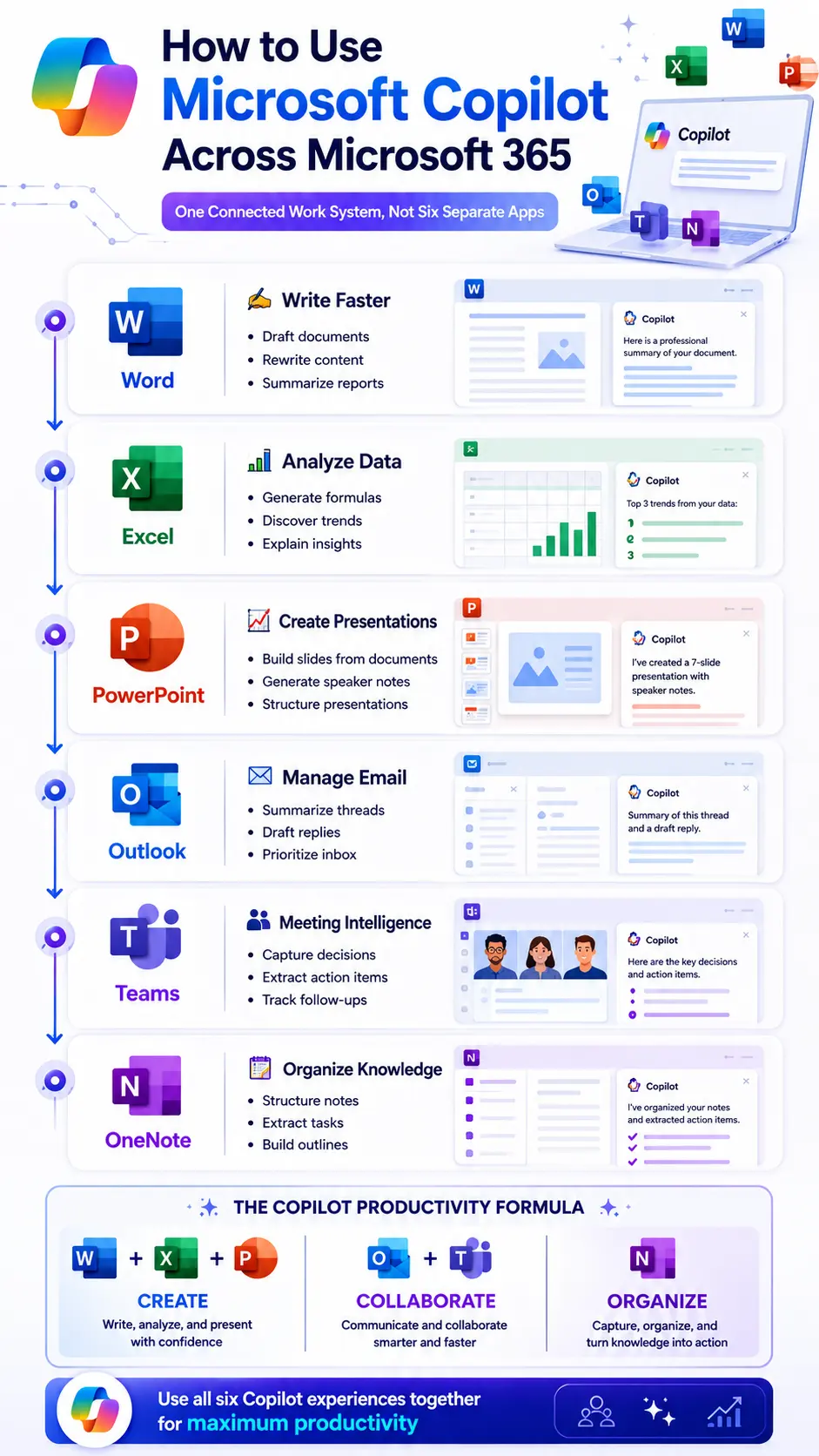
The following practical examples show how to use Copilot across daily business tasks.
1. How to Use Copilot for Word
Copilot for Word is designed to help users write faster, communicate clearly, and improve document quality.
Whether you're creating reports, proposals, summaries, or business documents, Copilot can significantly reduce writing time.
What Copilot Does in Word
- Drafts new documents
- Rewrites existing content
- Summarizes lengthy documents
- Improves grammar and clarity
- Adjusts tone and style
Best Use Cases
- Business proposals
- Reports
- Executive summaries
- Internal documentation
- Client communications
Recommended Prompt
"Rewrite this in a professional tone and reduce it to 5 key points."
Practical Example
Before using Copilot:
- Long document
- Unclear priorities
- Difficult to review quickly
After using Copilot:
- Concise summary
- Clear takeaways
- Faster decision-making
When learning How to Use Microsoft Copilot, Word is often the easiest place to start because the improvements are immediately visible.
1. How to Use Copilot for Excel
Many professionals collect large amounts of data but struggle to turn numbers into meaningful insights.
This is where Copilot for Excel becomes extremely valuable.
What Copilot Does in Excel
- Generates formulas
- Analyzes datasets
- Creates pivot tables
- Identifies trends
- Explains results in simple language
Best Use Cases
- KPI reporting
- Sales analysis
- Performance dashboards
- Financial tracking
- Data cleaning
Recommended Prompt
"Analyze this data and explain the top 3 trends in simple language."
For better insights, ask Copilot to explain:
- The trend
- The likely cause
- The business decision it supports
Practical Example
Instead of manually reviewing thousands of rows, Copilot can quickly identify:
- Revenue growth patterns
- Seasonal fluctuations
- Customer behavior trends
- Performance anomalies
This makes Copilot for Excel particularly useful for managers, analysts, marketers, and business owners.
2. How to Use Copilot for PowerPoint
Creating presentations can consume hours of valuable work time.
Microsoft Copilot helps reduce that effort dramatically.
What Copilot Does in PowerPoint
- Builds slide decks from documents
- Creates presentations from prompts
- Generates speaker notes
- Structures content logically
Best Use Cases
- Client presentations
- Team updates
- Training materials
- Project reports
- Executive briefings
Recommended Prompt
"Turn this document into a 7-slide presentation with speaker notes."
Review Checklist
After Copilot creates slides, verify that each slide contains:
- One key message
- One visual concept
- One takeaway
This simple review process improves presentation quality while preserving speed.
3. How to Use Copilot for Outlook
Email remains one of the biggest productivity challenges for modern professionals.
Long email chains often waste valuable time.
That's why Copilot for Outlook is one of the most practical Microsoft 365 AI features.
What Copilot Does in Outlook
- Summarizes email threads
- Drafts responses
- Suggests replies
- Prioritizes inbox activity
Best Use Cases
- Busy inbox management
- Client communications
- Project discussions
- Executive updates
Recommended Prompt
"Summarize this email thread and draft a polite reply."
Customize the Tone
You can also instruct Copilot to use a specific tone:
- Direct
- Warm
- Professional
- Firm
- Executive
Practical Example
Instead of reading a 30-message conversation from the beginning, Copilot can provide:
- Key discussion points
- Important decisions
- Outstanding questions
- A ready-to-send response
For many professionals, Copilot for Outlook delivers immediate daily time savings.
4. How to Use Copilot for Teams
Meetings often generate valuable discussions but poor documentation.
Important decisions can easily get buried.
What Copilot Does in Teams
- Creates meeting summaries
- Extracts action items
- Highlights decisions
- Tracks follow-up tasks
Best Use Cases
- Team meetings
- Project reviews
- Client discussions
- Leadership meetings
Recommended Prompt
"Summarize the key decisions and action items from this meeting."
For stronger results, also ask Copilot to identify:
- Task owners
- Deadlines
- Blockers
- Unresolved questions
Practical Example
After a one-hour meeting, Copilot can generate a structured summary that includes:
- Decisions made
- Responsibilities assigned
- Next steps
- Follow-up requirements
This ensures accountability and reduces confusion.
5. How to Use Copilot for OneNote
Many professionals collect notes but rarely organize them effectively.
Ideas, meeting notes, tasks, and research often become scattered.
What Copilot Does in OneNote
- Organizes content
- Summarizes notes
- Extracts tasks
- Creates structured outlines
Best Use Cases
- Meeting notes
- Brainstorming sessions
- Project planning
- Knowledge management
Recommended Prompt
"Organize these notes into clear sections and extract all action items."
Practical Example
Raw notes often contain:
- Random thoughts
- Incomplete tasks
- Mixed topics
Copilot converts these notes into:
- Structured categories
- Clear action items
- Prioritized tasks
- Organized documentation
This turns OneNote into a true productivity hub.
Microsoft Copilot Prompts for Daily Productivity
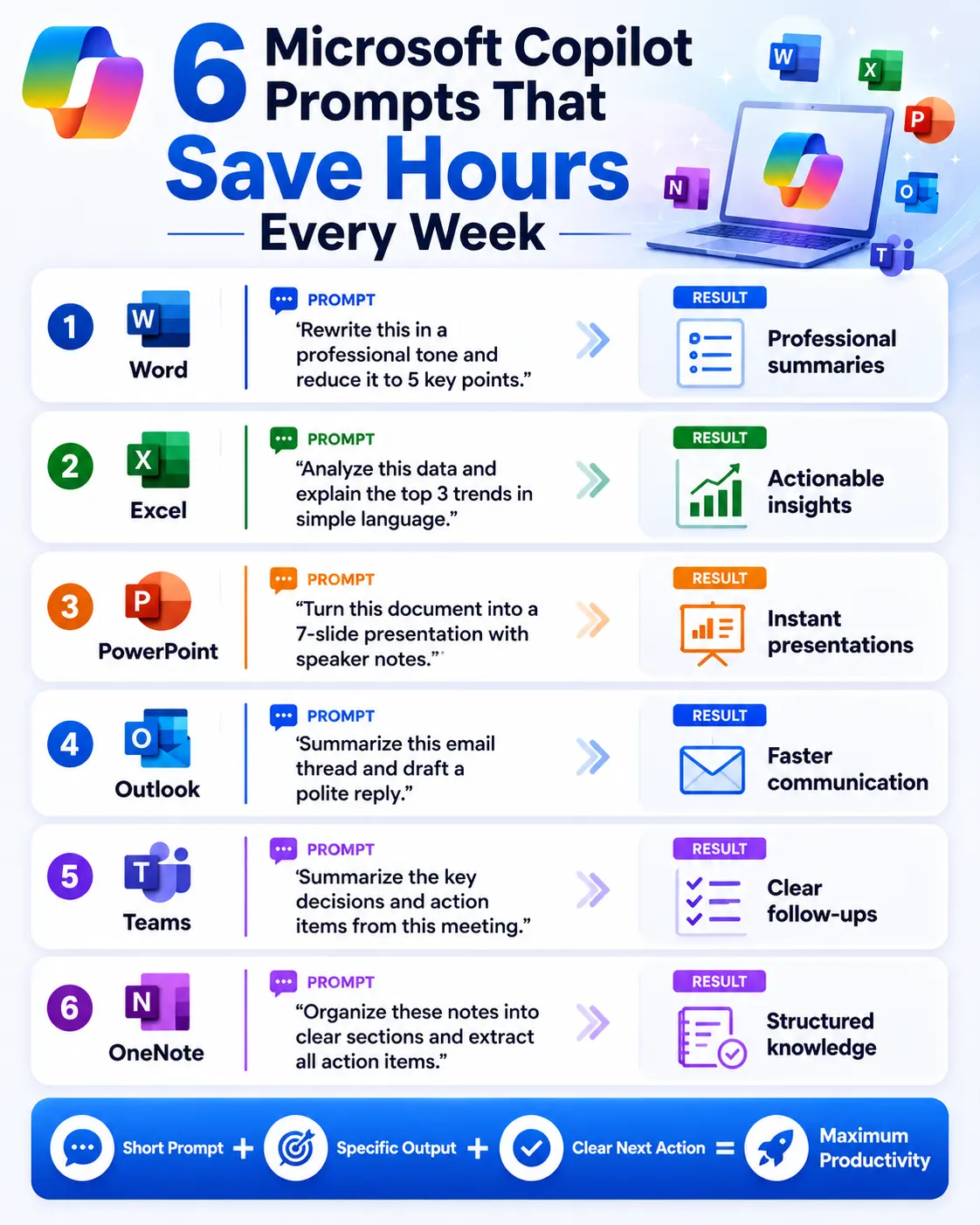
| Microsoft 365 App | Purpose | Recommended Prompt | Expected Outcome |
|---|---|---|---|
| Word | Write faster, improve clarity, and create professional documents | "Rewrite this in a professional tone and reduce it to 5 key points." | Converts lengthy content into a concise executive summary that is easier to review and share. |
| Excel | Turn raw data into actionable insights | "Analyze this data and explain the top 3 trends in simple language." | Identifies key trends, explains possible causes, and highlights decisions supported by the data. |
| PowerPoint | Create presentations quickly from existing content | "Turn this document into a 7-slide presentation with speaker notes." | Generates a structured slide deck with presentation-ready talking points. |
| Outlook | Manage emails more efficiently | "Summarize this email thread and draft a polite reply." | Provides a quick summary of lengthy conversations and prepares a professional response. |
| Teams | Capture decisions and action items from meetings | "Summarize the key decisions and action items from this meeting." | Creates a meeting recap with decisions, responsibilities, deadlines, and follow-up tasks. |
| OneNote | Organize notes and extract important tasks | "Organize these notes into clear sections and extract all action items." | Transforms scattered notes into structured information with actionable next steps. |
Quick Summary: Microsoft Copilot Across Microsoft 365
| Application | Main Benefit |
|---|---|
| Word | Writing and document creation |
| Excel | Data analysis and insights |
| PowerPoint | Presentation creation |
| Outlook | Email productivity |
| Teams | Meeting summaries |
| OneNote | Note organization |
The Microsoft Copilot Productivity Formula
One simple way to understand the Microsoft 365 workflow is:
| Workflow Area | Applications |
|---|---|
| Create | Word + Excel + PowerPoint |
| Collaborate | Outlook + Teams |
| Organize | OneNote |
Together, these applications form a complete productivity ecosystem powered by AI.
Sabir's take
Excel is where I am most careful. Copilot will produce a formula that looks entirely reasonable and is quietly wrong, and unlike prose there is no obvious tell. I check anything that feeds a decision. In Word and Outlook I trust it much further, because a poor draft is visible immediately and costs nothing but a second attempt.
Frequently Asked Questions
What is Microsoft Copilot?
Microsoft Copilot is an AI-powered assistant integrated into Microsoft 365 applications that helps users create content, analyze data, summarize information, and automate routine tasks.
How do I start using Microsoft Copilot?
Begin with simple tasks inside Word, Excel, or Outlook. Use clear prompts, request specific outputs, and refine results with follow-up instructions.
Is Copilot available in Excel?
Yes. Copilot for Excel can analyze data, create formulas, identify trends, generate reports, and explain insights in natural language.
Can Copilot summarize emails?
Yes. Copilot for Outlook can summarize long email threads, highlight important details, and draft responses based on your preferred tone.
Where Copilot Earns Its Licence
Copilot pays for itself fastest in Outlook and Word, where the work is mostly language. Excel needs the closest supervision, because a wrong formula looks exactly like a right one until somebody checks it.
If you are deciding whether the licence is worth it, track a week of actual use rather than trialling features. For most people the value concentrates in two apps, not six.
- Write faster in Word
- Analyze data in Excel
- Build presentations in PowerPoint
- Manage email in Outlook
- Capture decisions in Teams
- Organize knowledge in OneNote

Sabir
Founder of AIToolsay and a passionate AI enthusiast dedicated to building practical, user-friendly AI tools that simplify everyday tasks.
Discussion 0
Join the conversation — share your thoughts, ask questions, help others.
Be respectful. Comments are moderated.
No comments yet
Be the first to share your thoughts on this article.
Want more AIToolsay stories in your Google Search results?